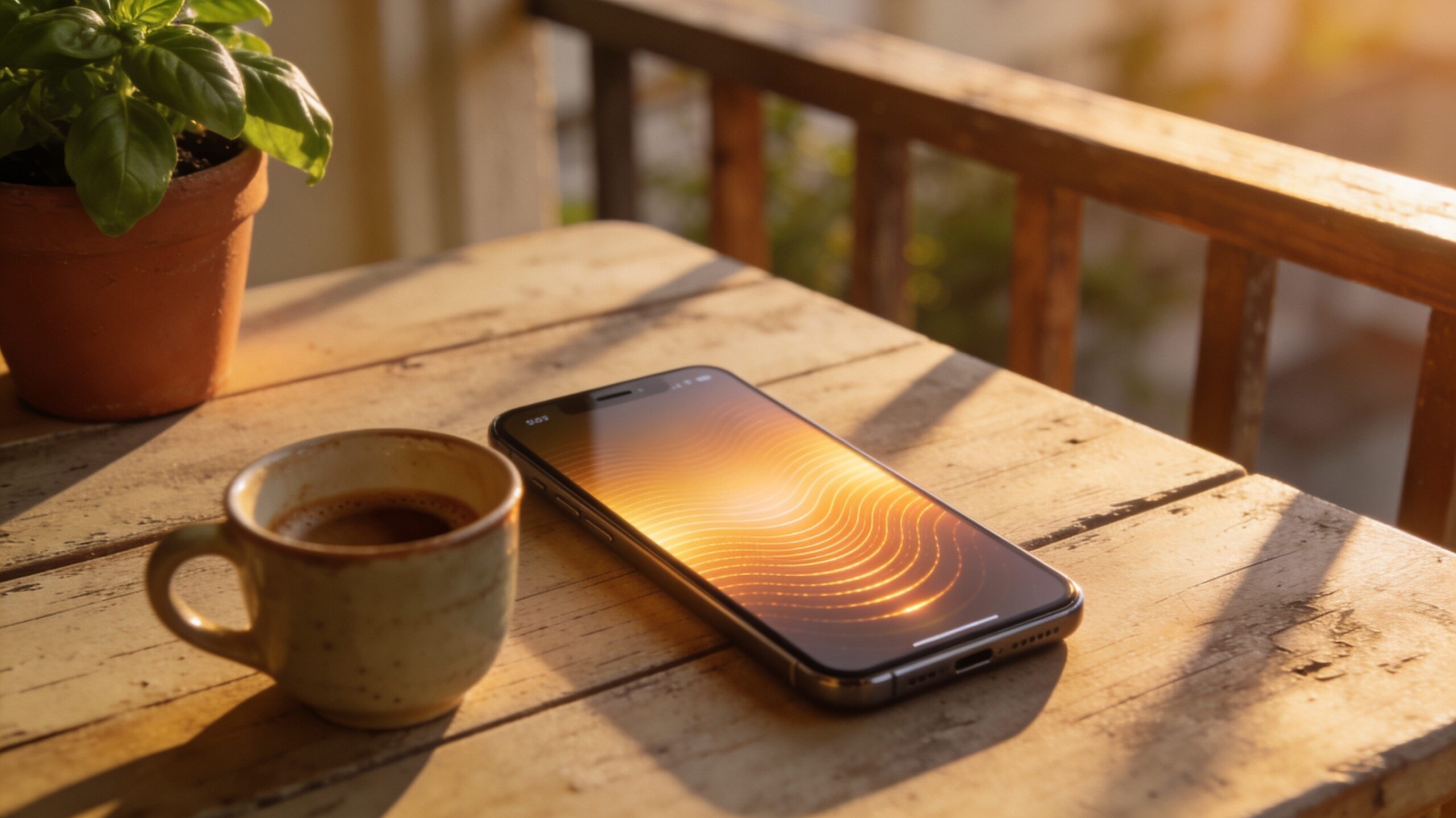
Picture this: you’re on the balcony. The sun is out, your Wi-Fi just about reaches, and you’re in the mood for music. Up until now, that meant you needed a Sonos, a Squeezelite client, or a Chromecast device nearby. With Mobile MA alone, the balcony was a silent place.
That changes with version 1.7.
Your iPhone as a speaker — finally
The biggest change in 1.7 is also the simplest to explain: your iPhone itself is now a speaker. It shows up at the top of your player list, in its own section called “Local Playback”. Tap it, hit play, and music comes out of your iPhone speakers — or your AirPods.
This works thanks to the Sendspin protocol, which the official Music Assistant app uses too. Your iPhone registers itself with the Music Assistant server, gets its own player ID, and then receives audio data just like any other speaker on your network.
That sounds unspectacular, but it’s a game changer. Mobile MA is finally mobile in the literal sense.
Even with the screen locked
All of this would only be half as useful if the music stopped the moment you slipped your iPhone into your pocket. So in 1.7, local playback keeps running in the background — with the screen locked, in other apps, while taking a phone call. Exactly the way you know it from Spotify or Apple Music.
If you’d rather not use your iPhone as a speaker (it saves a bit of battery), you can switch the feature off in Settings.
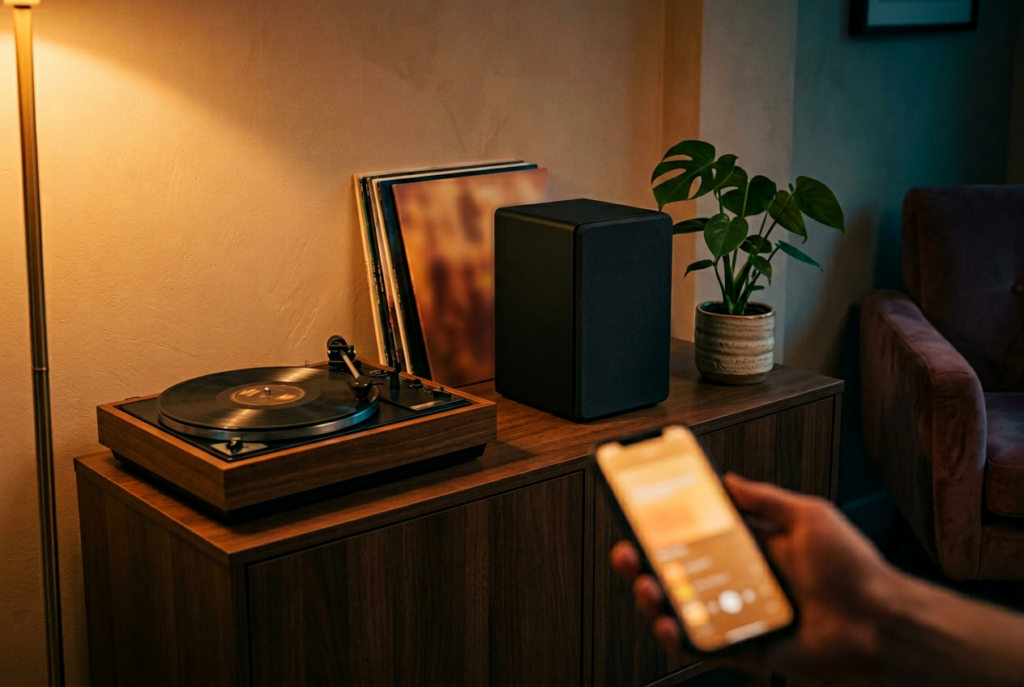
Speaker management: who’s on, who’s off?
In Mobile MA 1.7, the player view is split into three sections:
- Local Playback — your iPhone, always at the top.
- Active Speakers — every switched-on, reachable speaker.
- Inactive Speakers — everything that’s currently off or unreachable.
The neat part: you can switch any speaker on or off right from the app. Tap the little power icon, confirm, done. And if something goes wrong, you see a toast notification — so no more “why isn’t anything happening?”.
Lost connection? It comes back on its own.
Anyone who uses Music Assistant knows the feeling: sometimes the WebSocket connection drops. The router restarts, the Wi-Fi hiccups, you switch between Wi-Fi and LTE. So far, that meant: restart the app.
In 1.7, the app reconnects on its own. An orange banner at the top tells you what’s happening: “Reconnecting, attempt 2 of …”. In Settings, a small status indicator shows green, orange or red so you know exactly where you stand. As soon as the connection is back, the app reloads your players automatically — you don’t have to do a thing.
Tidy up the queue, at last
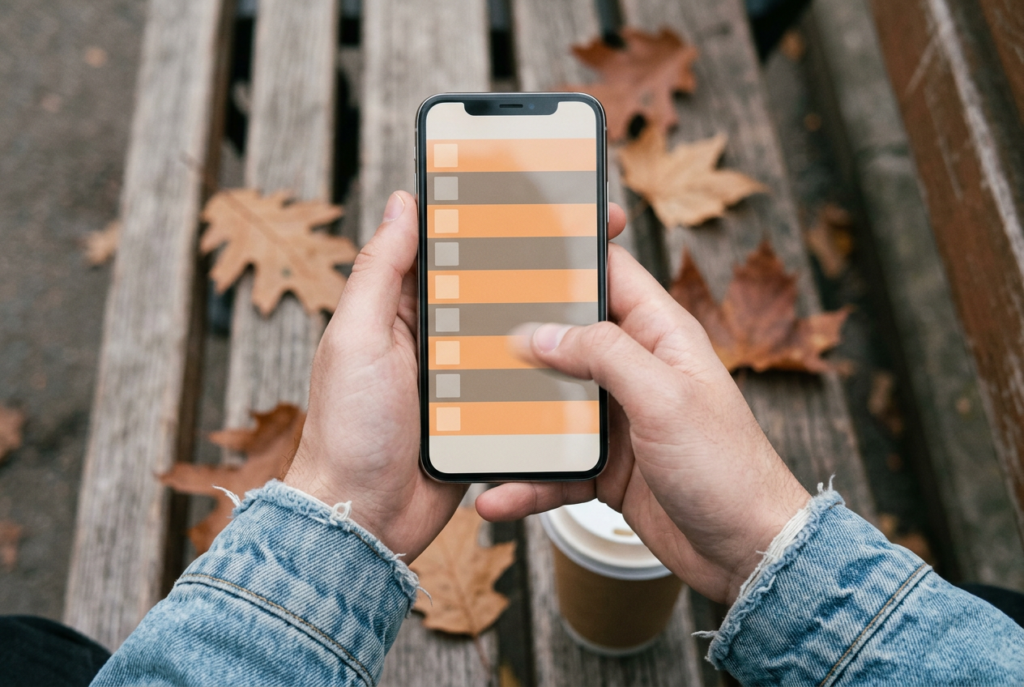
Small, but long overdue: you can now edit your playback queue. Swipe to delete individual tracks (in the now-playing view) or remove them via the minus button in the Queue tab, and rearrange them with drag-and-drop. Finally.
A golden star for the supporters
One last thing: the red dot on the Settings tab is gone. Anyone who has supported Mobile MA via the optional tip-jar purchases now sees a small golden star instead. A small gesture, but one that matters to me personally — thank you to everyone keeping this project alive.
What else snuck in
A handful of smaller improvements landed in 1.7 as well:
- Your logged-in username now appears directly in Settings — handy to check which account you’re connected with.
- The “Support Development” section has moved to the very top of Settings.
- A few internal bugs around player synchronisation are gone.
What’s coming next
1.7 is a big release, but I’m not done yet. On the list for upcoming versions: lyrics support and a few more comfort features for the queue. If you have wishes, send them my way.
The new version is available on the App Store right now. Have fun with it — and most importantly, lots of music.
Version history:
← Previous: Mobile MA 1.6 — Live Activities and a Smoother Genre Experience
All versions: Mobile MA section
Help & questions: Support form